

Quick answer: On Windows 11, go to Settings > Network & internet > Wi-Fi > Manage known networks, choose your network and click View Wi-Fi security key. On iPhone, go to Settings > Wi-Fi, tap the (i) next to the network and tap Password. On Android, tap the network in Wi-Fi settings and choose Share to show a QR code and, on many phones, the password. You can also find the default password on a sticker on your router.
Last updated: 28 November 2026
How to find the Wi-Fi password on each device
| Device | Steps |
|---|---|
| Windows 11 | Settings > Network & internet > Wi-Fi > Manage known networks > your network > View Wi-Fi security key |
| Windows 10 | Control Panel > Network and Sharing Center > your Wi-Fi name > Wireless Properties > Security > tick Show characters |
| Mac | System Settings > Wi-Fi > Advanced (or Details) > next to the network, click the three dots > Copy Password; or use the Passwords app |
| iPhone / iPad | Settings > Wi-Fi > tap (i) next to the network > Password (Face ID or passcode needed) |
| Android | Settings > Network & internet (or Connections) > Wi-Fi > tap the network or its gear icon > Share; the QR code appears and many phones show the password below it |
How do I see the Wi-Fi password using Command Prompt?
On any Windows PC, open Command Prompt and type netsh wlan show profile name="YourNetworkName" key=clear, replacing YourNetworkName with the Wi-Fi name. The password appears next to Key Content. To list all saved networks, type netsh wlan show profiles.
How do I share Wi-Fi without telling someone the password?
- iPhone to iPhone: bring the phones close together while the other person tries to join; tap Share Password when it pops up.
- Android: use Share to show a QR code that the other phone can scan with its camera.
- Make a QR code: you can create a Wi-Fi QR code for guests. See our guide on how to make a QR code for free.
What if I have never connected to the network?
Look at the sticker on your router or modem. It usually lists the network name (SSID) and the default password, often labelled WPA key, Wireless key or Wi-Fi password. If someone changed it, log in to the router's admin page (often 192.168.0.1 or 192.168.1.1) with the admin details on the sticker, or reset the router to factory settings as a last resort.
How do I make my Wi-Fi password stronger?
Use WPA2 or WPA3 security and a long passphrase of at least 12 characters. Change the default router admin password too. More tips in our Wi-Fi guide and how to create a strong password.
Only look up passwords for networks you own or have permission to use.
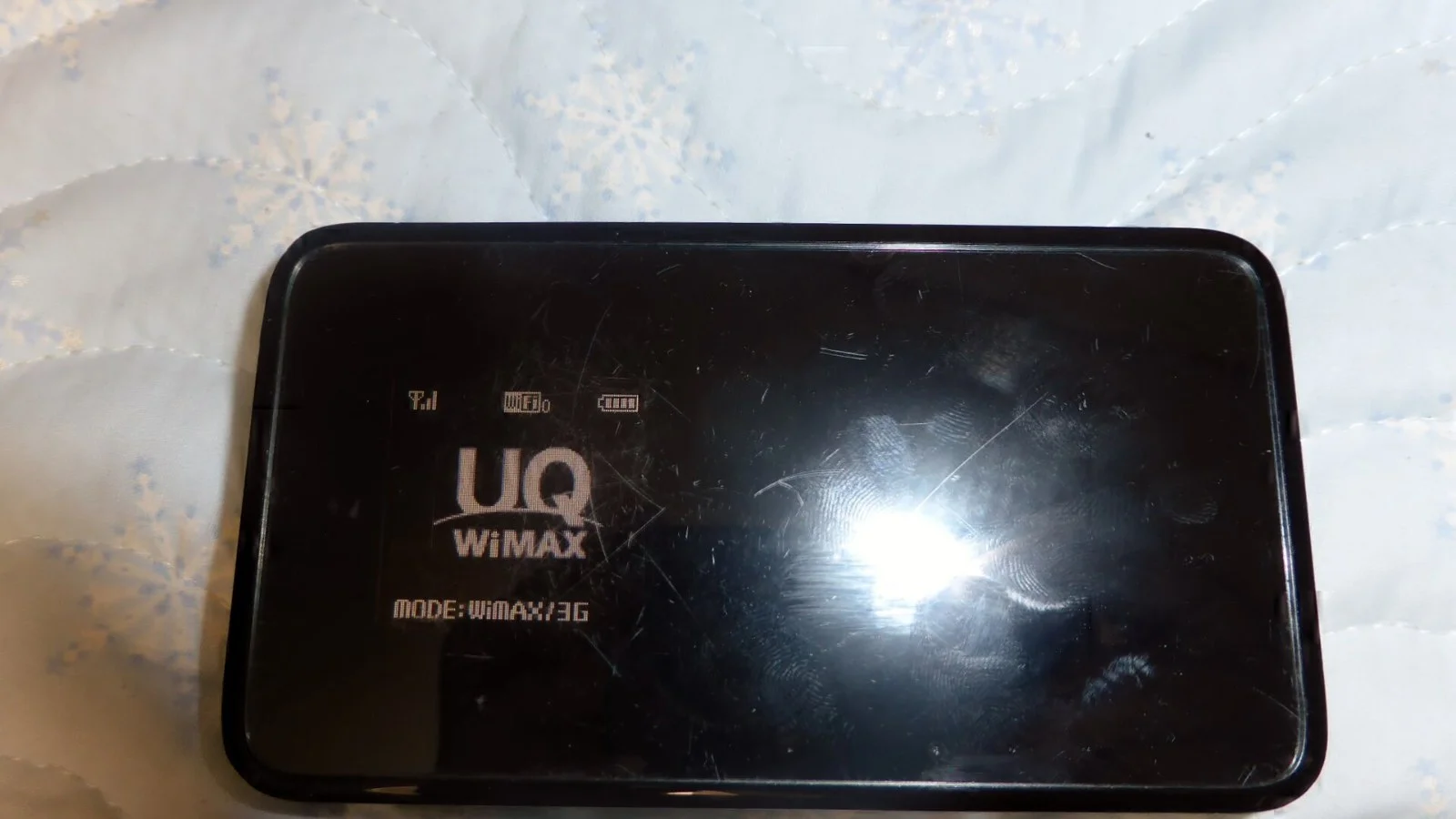
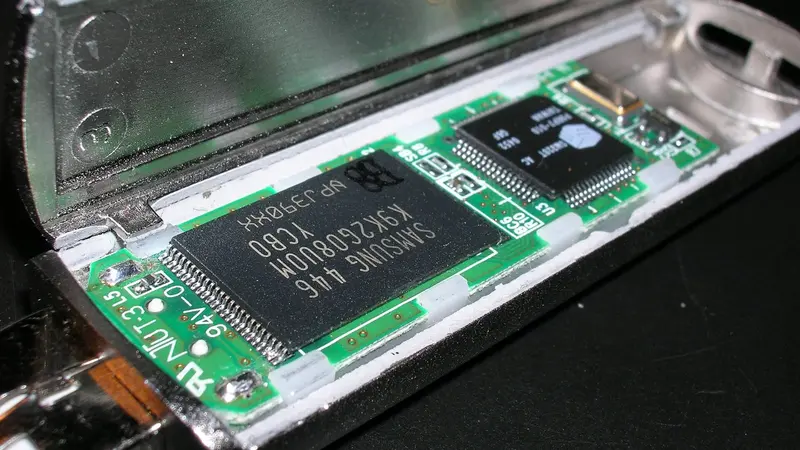
Featured image: "Wi-Fi WALKER DATA08W (2)" by Tokumeigakarinoaoshima, CC0 (cropped), via Wikimedia Commons. Based on Windows, macOS, iOS and Android settings.


















Comments 0
Leave a Comment
💬
No comments yet. Be the first to share your thoughts!