

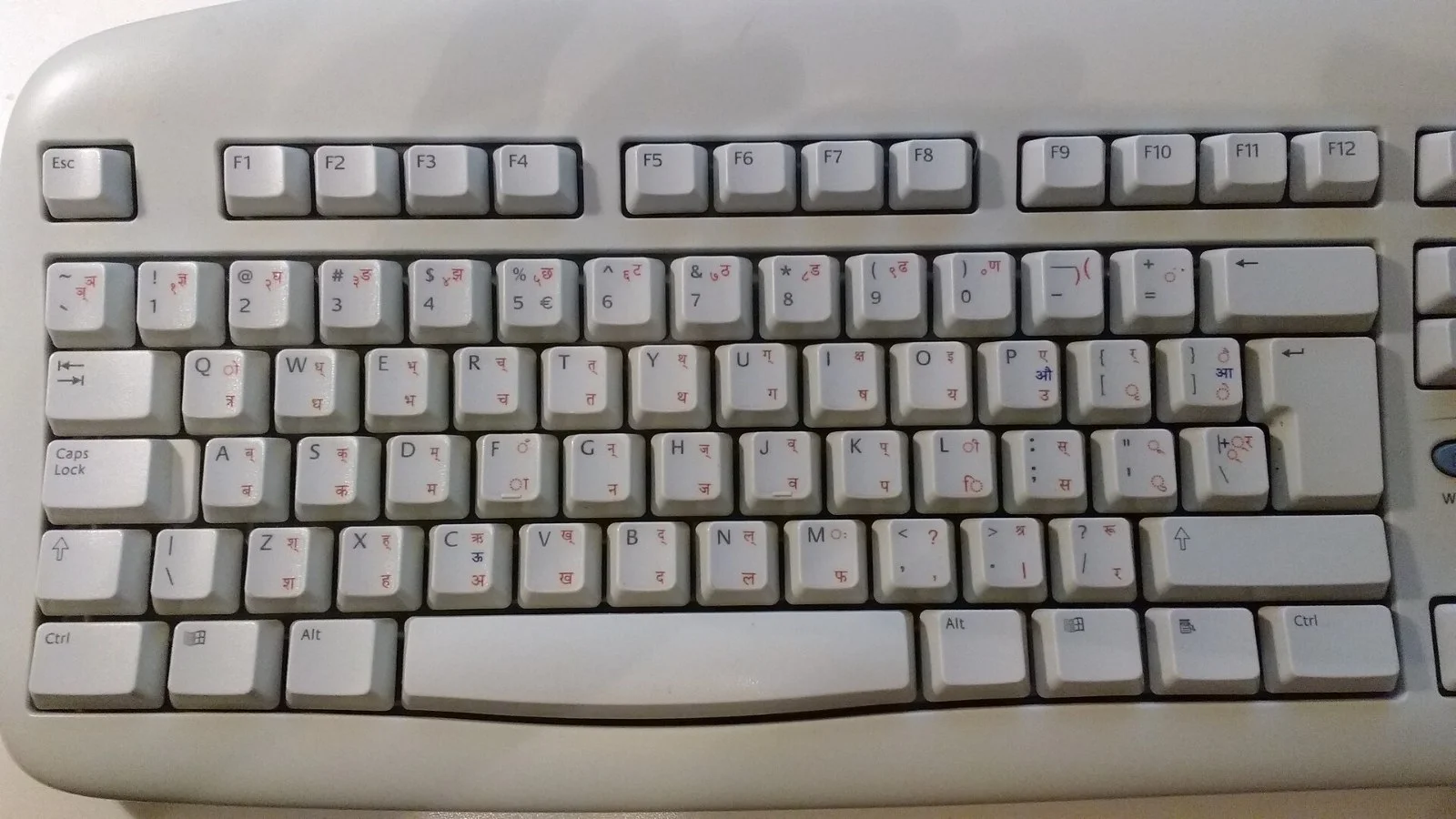
Quick answer: Press Windows + Shift + S to select any part of the screen; the screenshot is copied to the clipboard and can be saved from the Snipping Tool notification. Press Windows + Print Screen to save a full-screen image straight to Pictures > Screenshots. Press Alt + Print Screen to copy just the active window.
Last updated: 28 November 2026
What are all the screenshot shortcuts on Windows?
| Shortcut | What it captures | Where it goes |
|---|---|---|
| Windows + Shift + S | A rectangle, free-form area, window or full screen that you choose | Clipboard, plus Snipping Tool to edit and save |
| Print Screen (PrtScn) | Full screen | Clipboard (on Windows 11 it may open Snipping Tool instead) |
| Windows + Print Screen | Full screen | Saved automatically to Pictures > Screenshots |
| Alt + Print Screen | The active window only | Clipboard |
| Windows + Alt + Print Screen | The active window (game or app) | Saved to Videos > Captures via Game Bar |
| Windows + G | Game Bar overlay with a capture button | Videos > Captures |
How do I use Windows + Shift + S?
- Press Windows + Shift + S. The screen dims and a small toolbar appears at the top.
- Choose Rectangle, Free-form, Window or Full screen.
- Drag to select the area.
- The image is copied. Paste it anywhere with Ctrl + V, or click the notification to open it in Snipping Tool, where you can draw on it and save it.
Where are screenshots saved on Windows?
Screenshots taken with Windows + Print Screen are saved in This PC > Pictures > Screenshots. Game Bar captures go to Videos > Captures. Shortcuts that only copy to the clipboard do not save a file unless you paste or save the image. In Windows 11, Snipping Tool can also save screenshots automatically; check its settings.
How do I make the Print Screen key open Snipping Tool?
On Windows 11 go to Settings > Accessibility > Keyboard and turn on Use the Print screen key to open screen capture. Many recent Windows 11 PCs have this on by default.
How do I take a scrolling screenshot of a web page?
Windows does not have a built-in scrolling capture for every app. In Microsoft Edge, press Ctrl + Shift + S and choose Capture full page. In Chrome or Firefox, use the browser's developer tools or a trusted extension.
My laptop has no Print Screen key. What can I do?
Many laptops put PrtScn on another key, used together with the Fn key. If you cannot find it, Windows + Shift + S always works, and the on-screen keyboard (search for "On-Screen Keyboard") has a PrtScn button.
Related: how to speed up a slow Windows PC.
Featured image: "Devanagari Nepali layout (traditional)" by Evert Mouw, CC BY-SA 4.0 (cropped), via Wikimedia Commons. Based on Microsoft Windows keyboard shortcuts.















Comments 0
Leave a Comment
💬
No comments yet. Be the first to share your thoughts!