

Quick answer: Open Settings > General > iPhone Storage to see what is using space. The fastest wins are offloading apps you rarely use, emptying the Recently Deleted photo album, deleting large message attachments and turning on Optimise iPhone Storage for iCloud Photos. Restarting your iPhone can also shrink "System Data".
Last updated: 28 November 2026
How do I check what is using my iPhone storage?
Go to Settings > General > iPhone Storage. A bar at the top shows how much space Apps, Photos, Messages, iOS and System Data use, and below it is a list of apps sorted by size. iOS also shows recommendations such as "Offload Unused Apps" or "Review Large Attachments".
10 ways to free up iPhone storage
| # | What to do | Where | Typical space saved |
|---|---|---|---|
| 1 | Offload unused apps (keeps your data) | Settings > General > iPhone Storage > app > Offload App | Hundreds of MB to several GB |
| 2 | Turn on automatic offloading | Settings > App Store > Offload Unused Apps | Ongoing |
| 3 | Empty Recently Deleted photos | Photos > Albums > Recently Deleted > Delete All | Can be several GB |
| 4 | Optimise photo storage | Settings > [your name] > iCloud > Photos > Optimise iPhone Storage | Large, if you have many photos |
| 5 | Delete big message attachments | Settings > General > iPhone Storage > Messages > Review Large Attachments | Often 1–10 GB |
| 6 | Auto-delete old messages | Settings > Messages > Keep Messages > 1 Year or 30 Days | Ongoing |
| 7 | Remove downloaded videos and music | Netflix, Spotify, Apple Music, Podcasts download settings | Several GB |
| 8 | Clear Safari website data | Settings > Apps > Safari > Clear History and Website Data | Small to moderate |
| 9 | Delete and reinstall bloated apps | Apps with large "Documents & Data", such as social media apps | Hundreds of MB |
| 10 | Restart and update iOS | Settings > General > Software Update | Can reduce System Data |
What is the difference between offloading and deleting an app?
Offloading removes the app itself but keeps its documents and data, so when you reinstall it you pick up where you left off. Deleting removes the app and its data. Offloading is the safer choice for apps you might use again.
Why is "System Data" so big on my iPhone?
System Data (previously called "Other") includes caches, logs, temporary files and streaming data. It grows and shrinks on its own. Restarting the phone, updating iOS and clearing caches inside large apps often reduces it. If it stays very large for weeks, backing up and restoring the iPhone usually fixes it, but only try that once you have a full backup.
How do I stop my iPhone storage from filling up again?
- Keep automatic app offloading turned on.
- Set Messages to keep messages for 1 year instead of forever.
- Use iCloud Photos with Optimise iPhone Storage, or move photos to a computer regularly.
- Stream music and video on Wi-Fi instead of downloading everything.
- Keep at least 10% of storage free so iOS updates and the camera work smoothly.
Before deleting anything important, make a backup. See our guide on how to back up your phone and computer.
Menu names can differ slightly between iOS versions.
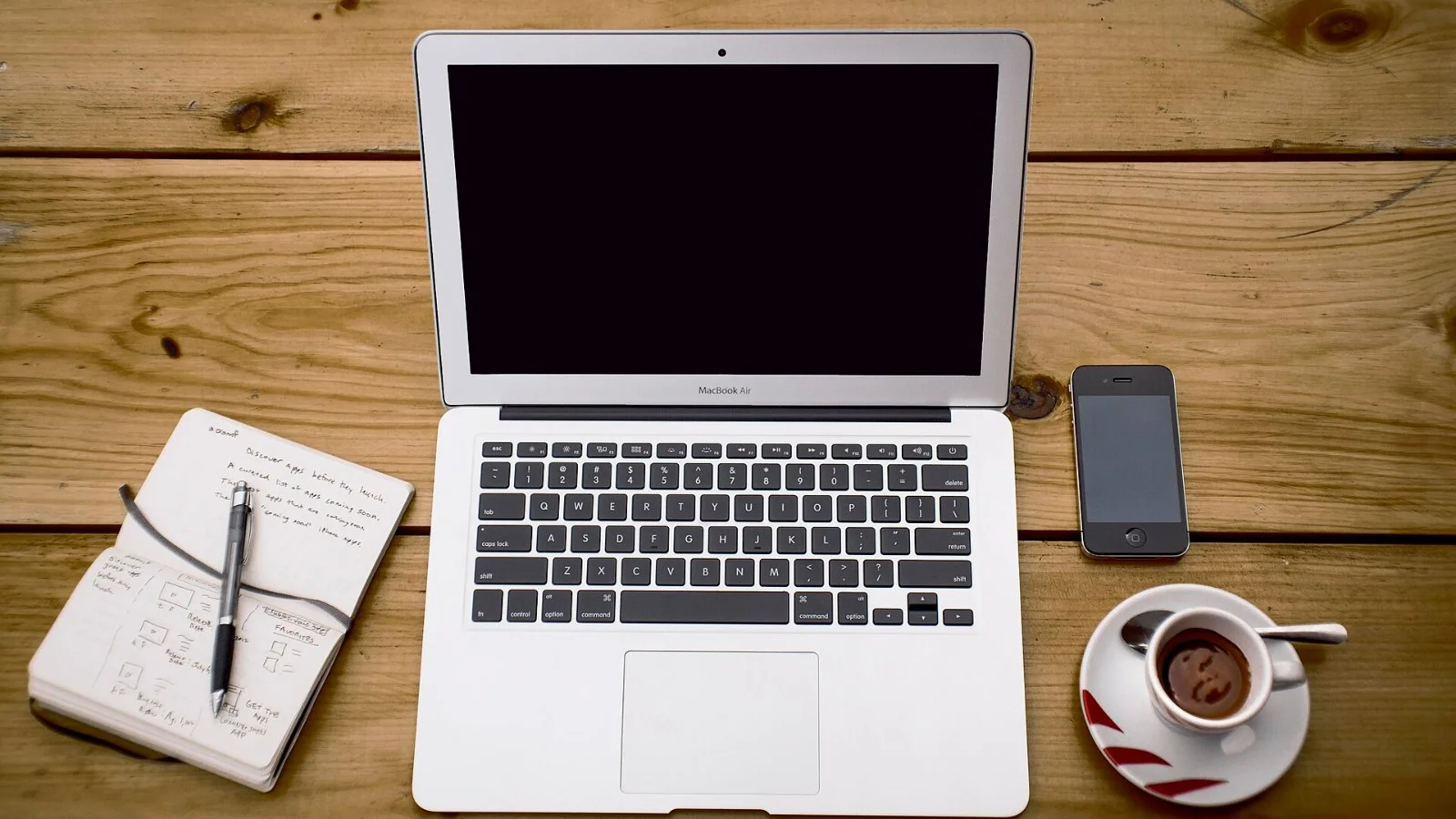
Featured image: "Iphone, macbook and smartphone on a table (Unsplash)" by Alejandro Escamilla alejandroescamilla, CC0 (cropped), via Wikimedia Commons. Based on Apple iOS Settings.


















Comments 0
Leave a Comment
💬
No comments yet. Be the first to share your thoughts!