

Last updated: 26 November 2026
Quick answer: To speed up a slow Windows PC, restart it, disable unnecessary startup apps (Task Manager → Startup apps), free up storage (Settings → System → Storage), install Windows and driver updates, scan for malware with Windows Security, and set the power mode to "Best performance" when plugged in. If it is still slow, the best upgrade is usually an SSD or more RAM.
12 fixes for a slow Windows PC
| # | Fix | Where to find it (Windows 11) |
|---|---|---|
| 1 | Restart your PC | Start → Power → Restart (clears memory and finishes updates) |
| 2 | Disable startup apps | Ctrl + Shift + Esc → Startup apps |
| 3 | Find heavy programs | Task Manager → Processes (sort by CPU, Memory, Disk) |
| 4 | Free up disk space | Settings → System → Storage → Cleanup recommendations |
| 5 | Turn on Storage Sense | Settings → System → Storage → Storage Sense |
| 6 | Install updates | Settings → Windows Update |
| 7 | Scan for malware | Windows Security → Virus & threat protection |
| 8 | Uninstall unused apps | Settings → Apps → Installed apps |
| 9 | Change power mode | Settings → System → Power & battery → Power mode |
| 10 | Reduce visual effects | Settings → Accessibility → Visual effects |
| 11 | Limit browser tabs and extensions | Your browser's extensions settings |
| 12 | Reset Windows (last resort) | Settings → System → Recovery → Reset this PC |
Why is my computer so slow?
- Too many programs starting with Windows.
- A nearly full drive (keep at least 10–15% free).
- Not enough RAM for modern browsers and apps.
- An old hard disk drive (HDD) instead of an SSD.
- Malware or unwanted "PC cleaner" software.
- Overheating because of dust or blocked vents.
- Pending updates or outdated drivers.
Which hardware upgrade helps most?
| Upgrade | Impact | Best when |
|---|---|---|
| HDD → SSD | Huge: much faster start-up and app loading | Your PC still uses a spinning hard drive |
| More RAM | Big for multitasking and many browser tabs | You have 8 GB or less and memory use is often high |
| Cleaning dust / new thermal paste | Stops overheating slowdowns | Fans are loud and the laptop gets very hot |
What should you avoid?
- "Registry cleaners" and "PC booster" apps: often useless and sometimes harmful.
- Disabling Windows Security to "save resources".
- Downloading drivers from random websites: use Windows Update or your PC maker's site.
Before you reset your PC
Back up your files first. Read our guide on how to back up your phone and computer.
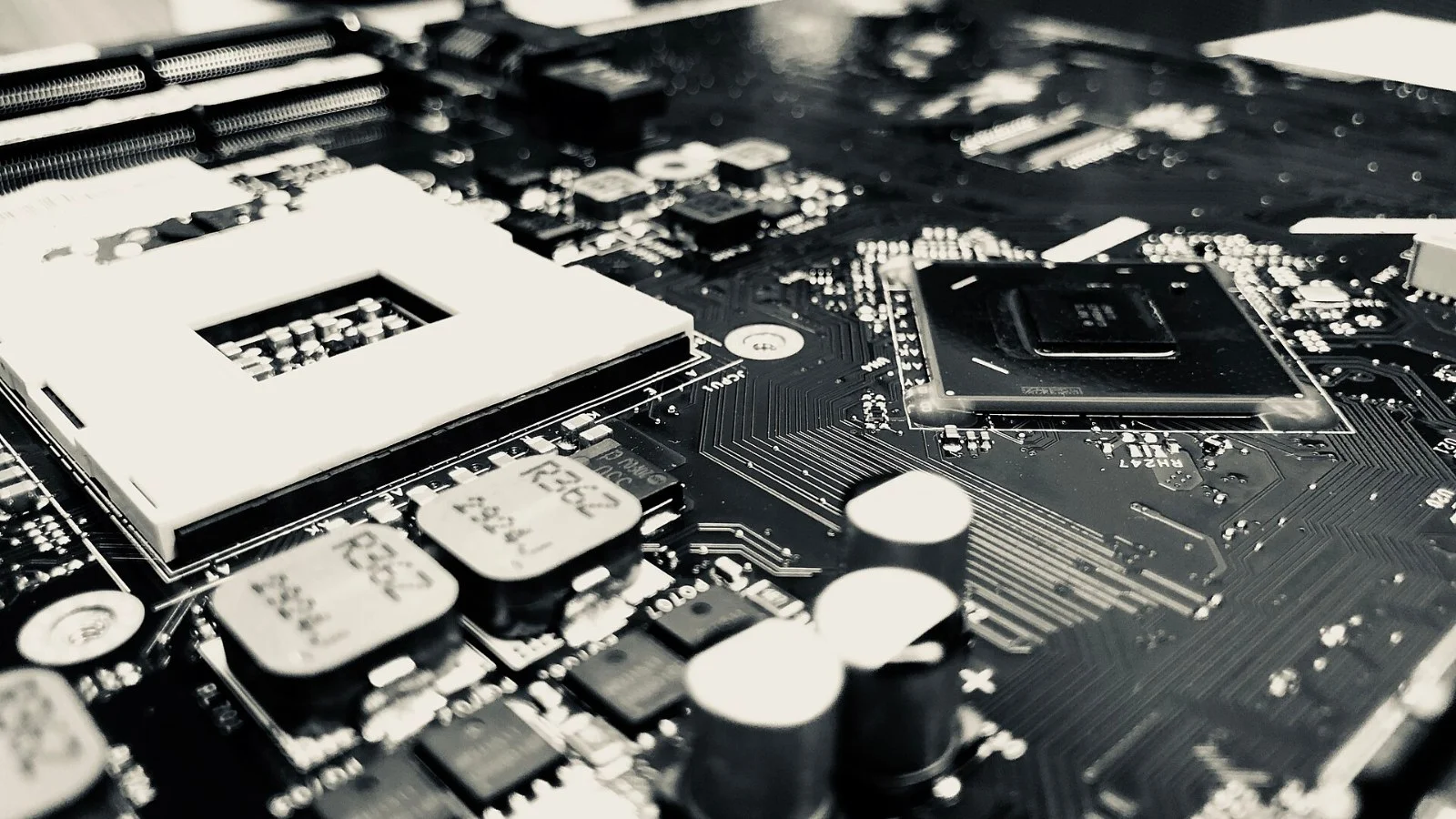
Featured image: "B&W motherboard circuits (38855379565)" by Jonathan Cutrer from San Angelo, Texas, United Sta, CC BY 2.0 (cropped), via Wikimedia Commons. Sources: Microsoft Support guidance on improving PC performance in Windows.
















Comments 0
Leave a Comment
💬
No comments yet. Be the first to share your thoughts!