

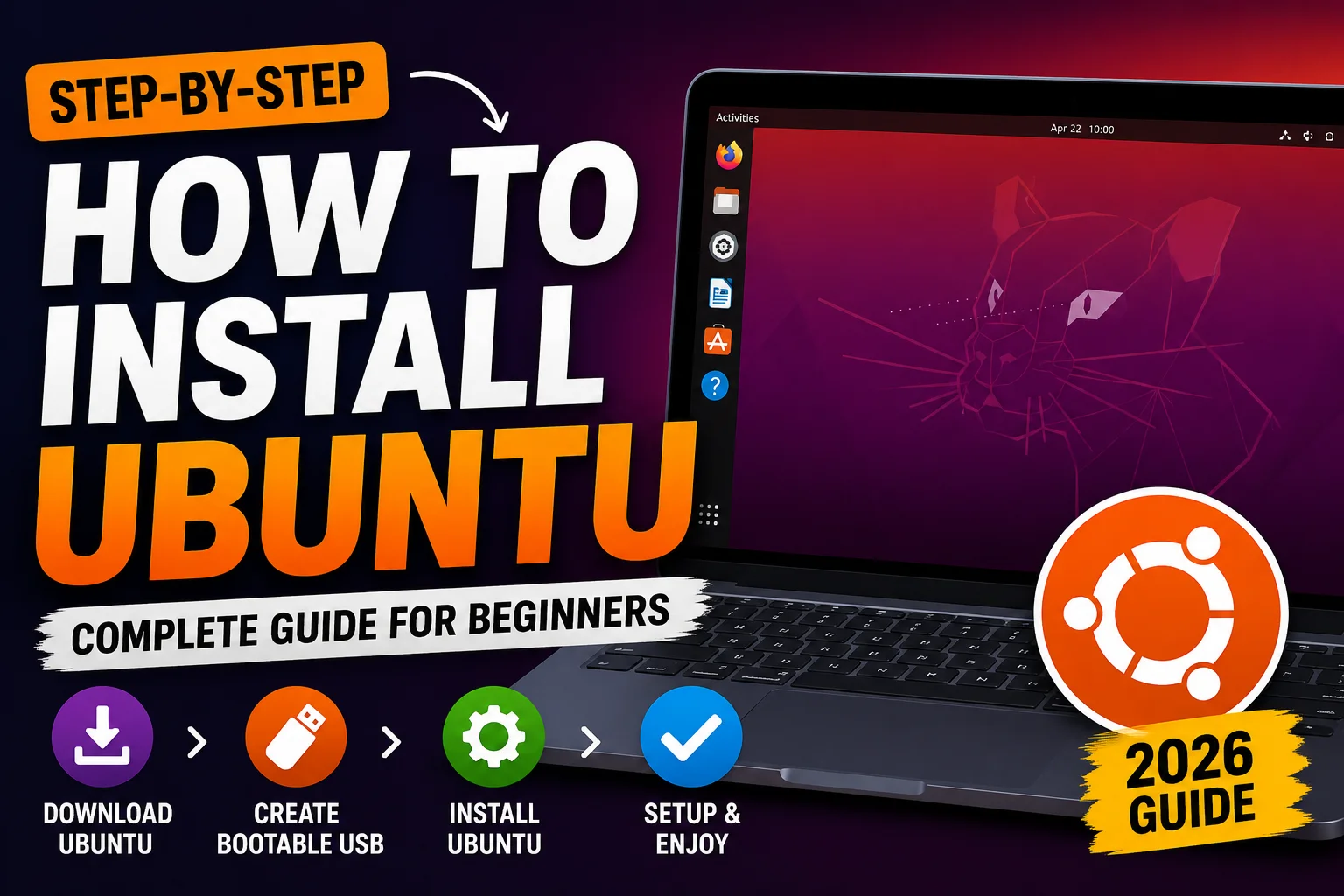
What Is Ubuntu?
Ubuntu is a free Linux operating system developed by Canonical. It is based on Debian Linux and is widely used by students, developers, businesses, and everyday computer users.
Ubuntu includes:
- Firefox web browser
- LibreOffice office suite
- Media players
- Software Center
- Security updates
- Thousands of free applications
Why Choose Ubuntu?
Ubuntu offers several advantages over other operating systems.
Free to Use
You don't need to purchase a license.
Secure
Ubuntu is less vulnerable to malware and includes built-in security features.
Fast Performance
It performs well even on older hardware.
Open Source
Anyone can inspect, modify, and improve the source code.
Excellent Community Support
Millions of users contribute tutorials, forums, and troubleshooting advice.
Minimum System Requirements
Before installing Ubuntu, make sure your computer meets these requirements.
| Component | Requirement |
|---|---|
| Processor | 2 GHz dual-core or faster |
| RAM | 4 GB (8 GB recommended) |
| Storage | 25 GB free disk space |
| USB Drive | 8 GB or larger |
| Internet | Recommended for updates |
<hr>
What Is Ubuntu?
Step 1: Download Ubuntu
Visit the official Ubuntu website and download the latest Long Term Support (LTS) version.
Choose:
- Ubuntu Desktop
- Latest LTS release
- 64-bit version
Save the ISO file to your computer.
Step 2: Create a Bootable Ubuntu USB
You'll need:
- USB drive (8 GB or larger)
- Bootable USB software
Popular tools include:
- Rufus (Windows)
- balenaEtcher (Windows, macOS, Linux)
- Ventoy
- Fedora Media Writer
Steps
- Insert the USB drive.
- Open your USB creation tool.
- Select the Ubuntu ISO.
- Choose the USB drive.
- Start the process.
- Wait until it finishes.
Step 3: Backup Important Files
If you plan to erase your hard drive or replace Windows, back up:
- Documents
- Photos
- Videos
- Downloads
- Important work files
Installation may erase existing data depending on the options you choose.
Step 4: Boot from the USB Drive
Restart your computer.
During startup, press the boot menu key.
Common boot keys include:
- F12
- F10
- F9
- Esc
- Delete
Select your USB drive from the boot menu.
Ubuntu will load after a few moments.
Step 5: Start the Ubuntu Installer
You'll see two options:
- Try Ubuntu
- Install Ubuntu
Choose Install Ubuntu.
Step 6: Select Your Language
Choose your preferred language and continue.
Step 7: Choose Keyboard Layout
Ubuntu automatically detects most keyboards.
You can also test your keyboard before continuing.
Step 8: Connect to Wi-Fi
Connecting to the internet allows Ubuntu to:
- Download updates
- Install third-party drivers
- Improve hardware compatibility
You can skip this step if needed.
Step 9: Choose Installation Type
Ubuntu offers several options.
Normal Installation
Includes:
- Browser
- Office software
- Games
- Utilities
Recommended for most users.
Minimal Installation
Includes only essential applications.
Ideal for:
- Developers
- Older computers
- Advanced users
Step 10: Install Third-Party Software
Enable:
- Graphics drivers
- Wi-Fi drivers
- Media codecs
This improves compatibility with your hardware.
Step 11: Choose Disk Setup
Ubuntu provides several installation options.
Option 1: Erase Disk and Install Ubuntu
This removes everything and installs Ubuntu as the only operating system.
Best for:
- New computers
- Dedicated Linux systems
Option 2: Install Alongside Windows
Creates a dual-boot system.
Each time your computer starts, you can choose between:
- Ubuntu
- Windows
Option 3: Manual Partitioning
Advanced users can create custom partitions such as:
- Root (/)
- Home (/home)
- Swap
Step 12: Choose Your Time Zone
Select your city or region.
Ubuntu automatically sets the correct system time.
Step 13: Create Your User Account
Enter:
- Your name
- Computer name
- Username
- Password
Choose whether Ubuntu should:
- Require a password at login
- Log in automatically
Step 14: Install Ubuntu
Ubuntu now copies files to your hard drive.
Installation usually takes between 10 and 30 minutes, depending on your hardware.
Step 15: Restart Your Computer
After installation:
- Click Restart Now.
- Remove the USB drive when prompted.
- Press Enter.
Ubuntu will boot from your hard drive.
First Steps After Installing Ubuntu
After logging in, complete these tasks.
Update Ubuntu
Open Terminal and run:
sudo apt update
sudo apt upgrade
Install Additional Software
Popular applications include:
- Google Chrome
- VLC Media Player
- Visual Studio Code
- Steam
- Discord
- GIMP
- Docker
- Git
<hr>
Enable Firewall
Ubuntu includes UFW (Uncomplicated Firewall).
Enable it with:
sudo ufw enableInstall Proprietary Drivers
Open:
Software & Updates ? Additional Drivers
Install any recommended drivers for NVIDIA, AMD, or Broadcom hardware.
Common Ubuntu Installation Problems
USB Doesn't Boot
- Disable Secure Boot if necessary.
- Verify the boot order in BIOS/UEFI.
- Recreate the bootable USB.
No Wi-Fi
Install the recommended wireless drivers after installation.
Black Screen During Boot
Try booting with the nomodeset kernel option if your graphics hardware is causing issues.
Installation Freezes
Check the ISO checksum to ensure the download isn't corrupted, and recreate the USB if needed.
Tips for New Ubuntu Users
- Learn basic Terminal commands.
- Keep your system updated regularly.
- Install software from the Ubuntu Software Center when possible.
- Enable automatic security updates.
- Back up important files using built-in backup tools or external storage.
Frequently Asked Questions
Is Ubuntu free?
Yes. Ubuntu is completely free to download, install, and use.
Can I install Ubuntu without deleting Windows?
Yes. Choose the Install Ubuntu alongside Windows option to create a dual-boot system.
How long does Ubuntu installation take?
Typically between 10 and 30 minutes, depending on your computer's performance.
Do I need antivirus software?
Linux systems like Ubuntu are generally less susceptible to malware than many other desktop operating systems, but it's still important to keep your system updated and follow good security practices.
Can I install Ubuntu on an old laptop?
Yes. Ubuntu works well on many older systems. If your hardware is especially limited, consider lighter Ubuntu-based distributions such as Xubuntu or Lubuntu.
Conclusion
Installing Ubuntu is an excellent way to explore Linux, improve your computer's performance, or create a secure and reliable development environment. By downloading the official ISO, creating a bootable USB, and following the installation wizard, even beginners can complete the process with confidence.
Once installed, keep your system updated, install the applications you need, and explore Ubuntu's rich ecosystem of free software. With its ease of use, strong community support, and regular updates, Ubuntu is a great choice for both personal and professional use.
Internal Linking Suggestions
- How to Create a Bootable USB Drive
- Best Linux Distributions for Beginners
- Ubuntu vs Windows: Which Operating System Is Better?
- Essential Ubuntu Terminal Commands Every Beginner Should Know
- How to Install Google Chrome on Ubuntu
- How to Update Ubuntu Safely
Image Suggestions
- Ubuntu desktop welcome screen
- Creating a bootable USB with Rufus
- Ubuntu installation wizard
- Disk partition selection screen
- Ubuntu desktop after installation
- Ubuntu Terminal running system updates













Comments 0
Leave a Comment
💬
No comments yet. Be the first to share your thoughts!